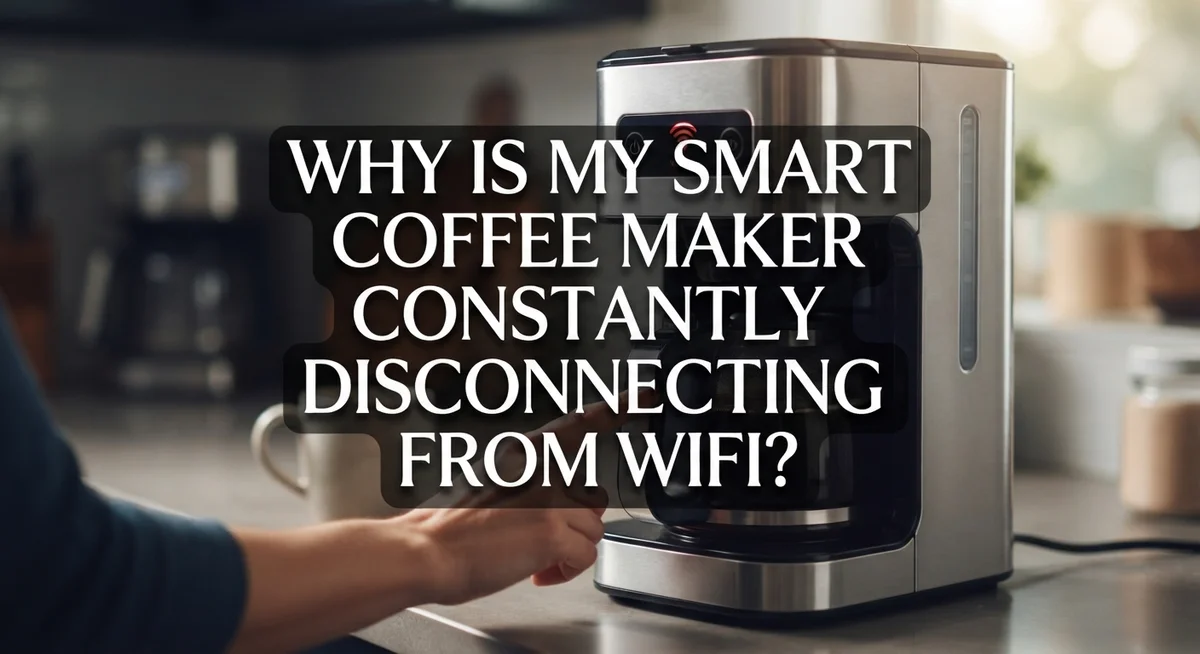
Why Is My Smart Coffee Maker Constantly Disconnecting From WiFi?
Your smart coffee maker promises easy mornings. You tap the app, expect a fresh brew, and instead see a dreaded “disconnected” message.
This problem happens more often than you think. Many Keurig K-Supreme Plus SMART owners face the same frustrating cycle of connecting, then dropping WiFi again.
The good news? This issue usually has simple, fixable causes.
In this guide, we will explain why your smart coffee maker keeps disconnecting from WiFi. We will cover the most common mistakes people make during setup.
By the end, you will know exactly how to keep your coffee maker connected. No more manual brewing because your app lost connection again.
In a Nutshell
Check your router band first. Your coffee maker only works with a 2.4 GHz network. It cannot connect to 5 GHz signals at all.
Do a full factory reset. Hold the reset button for 10 seconds. This clears old network data that causes sync mismatches.
Power cycle everything. Unplug your coffee maker and router. Wait a few seconds, then plug them back in.
Reconnect through the app. Open the Keurig app and use the Brew screen prompts. Follow each step carefully to link your device again.
Watch for password errors. These often signal a band conflict rather than a wrong password. Double check your network settings.
Fix the sync issue. Your coffee maker may show connected but still drop. This happens when the app and brewer settings do not match properly.
Understanding How Smart Coffee Makers Connect to WiFi
Your smart coffee maker connects to WiFi through a wireless chip inside the device. This chip communicates with your home router to send and receive data. The connection lets you control brewing from your phone or receive notifications about your coffee.
Most smart coffee makers use WiFi technology called 802.11b/g/n. This older standard works well for simple tasks like sending brew commands. Your phone and router use the same WiFi frequencies to talk to each other. When everything works properly, the connection stays stable and responsive.
Your router broadcasts WiFi signals on different bands or channels. Think of bands like different radio stations. Your coffee maker listens for signals on the 2.4 GHz band specifically. This band travels farther through walls and obstacles than newer 5 GHz bands. Older smart appliances were designed before 5 GHz became common, so they only understand 2.4 GHz signals.
The connection process starts when you open the app and select your WiFi network. Your coffee maker receives the password you enter. It then stores this information in its memory. Every time you power it on, the machine searches for that network and tries to reconnect automatically.
Your app and coffee maker stay synchronized through the network. When you brew from your phone, the app sends a message through WiFi to the machine. The machine confirms it received the command and sends back status updates. This constant back and forth keeps everything working smoothly.
Problems occur when this communication breaks down. Sync mismatches happen when your app and machine disagree about connection status. Your phone might show a green connected light while the machine actually lost the signal. Your router settings might also conflict with what your coffee maker expects to find. Understanding these basics helps you fix disconnection issues faster.
Common Causes of Constant WiFi Disconnections
Your smart coffee maker disconnects from WiFi for several key reasons. Understanding these causes helps you fix the problem faster.
Router band mismatch is the most common culprit. Smart coffee makers only work with 2.4 GHz WiFi bands. Many modern routers broadcast both 2.4 GHz and 5 GHz simultaneously. Your coffee maker cannot connect to the 5 GHz band, even though your phone might. This creates confusion because your router appears to work fine for other devices.
Sync problems between your device and app cause constant disconnections too. Your coffee maker may show as connected in the app, yet the actual connection drops repeatedly. This happens when the device and app lose communication about network settings. The issue is not your password or internet speed. It’s a communication breakdown between two parts of the same system.
Outdated network settings trapped in your coffee maker’s memory also trigger disconnects. When you change your WiFi password or network name, your coffee maker sometimes holds onto old information. The device tries to reconnect using outdated details, fails, and drops the connection.
Insufficient signal strength in certain locations weakens the connection. Smart coffee makers have smaller WiFi chips than phones or computers. They need stronger signals to maintain stable connections. If your coffee maker sits far from your router, the signal may drop below the minimum threshold.
Firmware issues on your coffee maker create unexpected disconnects. Like any smart device, coffee makers receive software updates. Sometimes these updates cause connection problems if they don’t install completely or if they conflict with your router model.
Router configuration problems also play a role. Some router security settings block smart appliances. Others have connection limits that prevent multiple devices from staying connected simultaneously.
The 2.4 GHz vs 5 GHz Band Issue Explained
Your smart coffee maker uses wireless technology that operates on specific frequency bands. Think of these bands as different radio channels your router broadcasts on simultaneously.
The 2.4 GHz band is the older, more universal frequency. Most smart home devices, including coffee makers, were designed to work on this band. It travels farther through walls and obstacles. However, it also gets crowded because many devices use it.
The 5 GHz band is newer and faster. It handles more data but doesn’t travel as far. Many modern routers broadcast both bands at the same time. This dual band setup helps with speed, but it creates a major problem for your coffee maker.
Your coffee maker cannot connect to the 5 GHz band. It simply lacks the hardware to recognize this frequency. If your router broadcasts both bands under the same network name, your coffee maker gets confused. It tries to connect to 5 GHz, fails, then drops the connection entirely.
Here’s what happens in practice. You see your WiFi network in the coffee maker’s app. You enter your password. The device attempts connection but fails repeatedly. The app might show “incorrect password” even though you typed it correctly. The real issue is the band mismatch, not your password.
Some routers let you disable the 5 GHz band or create separate network names for each band. This separation solves the problem immediately. Your coffee maker connects to the 2.4 GHz network and stays connected.
Check your router settings to see what bands you’re broadcasting. Look for options to split your WiFi into two separate networks. Give the 2.4 GHz network its own name and password. Your coffee maker will recognize it and connect properly.
This band issue explains why your device shows connected but keeps dropping. The frequencies simply don’t match what your coffee maker expects.
Step-by-Step Guide to Reconnecting Your Coffee Maker
Let’s walk through reconnecting your smart coffee maker step by step. These actions solve most WiFi problems quickly.
Start with a full factory reset. Locate the reset button on your coffee maker. Hold it down for 10 seconds. This clears all old network settings from your device’s memory. Old settings often cause sync problems between your coffee maker and app.
After the reset, power cycle both devices. Unplug your coffee maker and wait 30 seconds. Unplug your router too. Wait another 30 seconds. Plug the router back in first. Let it fully restart. Then plug your coffee maker back in. This action refreshes the connection between both devices.
Check your router settings before reconnecting. Make sure you’re using the 2.4 GHz band only. If your router broadcasts both 2.4 GHz and 5 GHz bands, you may need to disable the 5 GHz option temporarily. Some routers let you create separate network names for each band. This makes it easier to connect to 2.4 GHz specifically.
Now open your coffee maker’s app. Select the Brew screen option. Follow the on screen prompts to reconnect. Enter your WiFi password when prompted. The app will guide you through each step.
Wait for the connection to complete. Your app should show a connected status. This usually takes one to two minutes.
Test the connection by using a brewing feature in the app. If it works, your coffee maker is properly reconnected.
If disconnections continue after these steps, your router may have additional configuration issues. Check if your router firmware needs updating. Sometimes older routers struggle with newer smart appliances. Contact your router manufacturer for support if problems persist.
How to Perform a Full Factory Reset
A full factory reset clears all stored network settings from your smart coffee maker. This step removes any corrupted data that causes constant disconnections.
Find the reset button on your coffee maker. Most models have this button on the back or bottom of the unit. You may need to look under the water reservoir or behind the drip tray. Check your user manual if you cannot locate it easily.
Hold the reset button for 10 seconds without releasing it. You will see lights flash or hear a beep when the reset begins. Keep holding until the coffee maker powers down completely. This full reset takes about 10 to 15 seconds total.
Unplug the coffee maker after the reset. Wait for 30 seconds while it sits unplugged. This pause allows the internal systems to fully discharge. Then plug it back in and let it power on normally.
Reset your router at the same time. Unplug your router and wait 30 seconds as well. Plug it back in and let it fully restart. This simultaneous reset clears any conflicting connection data between both devices.
Check that your router broadcasts the 2.4 GHz band. Log into your router settings using your computer or phone. Look for wireless settings or band options. Make sure 2.4 GHz is enabled. If your router broadcasts both 2.4 GHz and 5 GHz on the same network name, disable the 5 GHz band or create separate network names for each frequency.
Open your coffee maker’s app after everything restarts. Wait for the app to detect your coffee maker. Follow the on screen prompts to reconnect. Enter your WiFi password when asked.
Test the connection by using a brewing feature in the app. Monitor for disconnections over the next 24 hours. If problems continue, your router may need additional configuration changes.
Mistakes That Cause Repeated Disconnections
Your smart coffee maker disconnects repeatedly because of specific mistakes during setup and daily use. Understanding these errors helps you fix the problem faster.
The most common mistake is using a 5 GHz WiFi band. Smart coffee makers only work on 2.4 GHz networks. If your router broadcasts both bands under the same network name, your coffee maker keeps trying to connect to the wrong frequency. This creates a connection loop where the device appears connected but drops seconds later.
Another frequent error is skipping the full factory reset. Many people try reconnecting without clearing old network settings first. Your coffee maker stores previous WiFi information in its memory. If that data becomes corrupted or outdated, the device cannot sync properly with your current network. A proper reset wipes everything clean.
Not power cycling both devices is another major mistake. Simply unplugging your coffee maker for a few seconds isn’t enough. You need to unplug both your coffee maker and router simultaneously. Wait at least 30 seconds before plugging them back in. This allows both devices to forget corrupted connection data completely.
People also reconnect too quickly after a reset. Your coffee maker needs time to fully restart and clear its memory. Rushing the process means old settings remain active, causing disconnections to resume within hours.
Outdated app versions cause sync problems between your coffee maker and the mobile app. The device shows connected in the app but drops on the actual brewer because the app isn’t communicating correctly with your device’s current firmware.
Finally, many users ignore their router’s WiFi password requirements. Some routers use complex passwords that include special characters. Your coffee maker may struggle entering these characters through its limited interface. Try simplifying your WiFi password to letters and numbers only before reconnecting.
Troubleshooting Persistent Sync and Connection Errors
Your smart coffee maker keeps disconnecting because of sync problems between the device and your app. This happens when the brewer thinks it’s connected, but your phone doesn’t receive the signal properly. The connection exists on paper but fails in practice.
Sync mismatches occur for three main reasons. First, your router settings don’t match what your coffee maker expects. Second, outdated network information stays stored in the device memory. Third, the app on your phone hasn’t updated to match the brewer’s current status.
Check if your router uses both 2.4 GHz and 5 GHz bands. Smart coffee makers only work on 2.4 GHz. If your router broadcasts both frequencies with the same name, your coffee maker gets confused during reconnection. It may connect to the 5 GHz band by mistake, which causes immediate disconnection.
Open your router settings on a computer or phone. Look for your WiFi network name and band options. You should see options for 2.4 GHz, 5 GHz, or dual band. If you have dual band enabled, consider separating them into different network names. This forces your coffee maker to connect only to 2.4 GHz.
Your app also stores old connection data. When you open the app after a factory reset, it sometimes tries to use outdated network settings instead of creating new ones. Close the app completely. Wait ten seconds. Then reopen it fresh. This forces the app to recognize your coffee maker as a new device.
Timing matters during reconnection. Wait at least two minutes after your factory reset before opening the app. Your coffee maker needs time to fully restart and clear its memory. Reconnecting too quickly prevents the device from completing its startup process properly.
If disconnections continue after checking these factors, your router may need a firmware update or configuration adjustment by your internet provider.
Final Thoughts
WiFi disconnections are frustrating, but they are fixable. Most problems come down to a few simple things. Your router band, your reset process, and your app settings all play a part.
Patience makes a big difference here. Rushing through setup often causes more disconnections later. Take your time with each step.
Remember that your coffee maker only works with the 2.4 GHz band. This single fact solves many connection problems on its own. Double check this setting before trying anything else.
A full factory reset clears out old data that confuses your device. Skipping this step often leads to repeated failures. Always hold that reset button for the full ten seconds.
Power cycling both your router and coffee maker resets their connection attempt. Think of it as giving both devices a fresh start. This simple action fixes many stubborn sync issues.
Your app matters just as much as your hardware. Keep it updated and let it fully load before connecting your device. Old app data causes more problems than most people realize.
If disconnections continue, check your router’s firmware. Outdated firmware sometimes blocks smooth communication with smart devices. A quick update can solve issues that basic resets cannot.
Stay calm if the first attempt does not work. Many users need two or three tries before their coffee maker connects reliably. This is normal for smart home devices.
Once your coffee maker connects properly, it usually stays connected. The key is getting the setup right the first time. Follow each step in order and avoid rushing.
With the right router settings and a proper reset, your coffee maker should run smoothly. Consistent WiFi means consistent coffee, brewed exactly when you want it. Your morning routine deserves that reliability.
Frequently Asked Questions
Why does my smart coffee maker show connected but still disconnects?
This happens when your device and app have different connection information stored. Your coffee maker may think it’s connected while your app shows something else. This sync mismatch confuses the system.
The fix is simple. Perform a full factory reset by holding the reset button for 10 seconds. Then power cycle your router too. Wait at least two minutes before reconnecting through your app.
Can I use my 5 GHz WiFi band with my smart coffee maker?
No. Smart coffee makers only work with 2.4 GHz bands. If your router broadcasts both 2.4 GHz and 5 GHz, your coffee maker will struggle to stay connected.
Check your router settings on your computer or phone. Look for band options. If needed, adjust your settings so the 2.4 GHz band works separately from the 5 GHz band.
What should I do right after a factory reset?
Don’t rush to reconnect immediately. Wait at least two minutes after the reset completes. This gives your coffee maker time to clear all old data.
Then open your mobile app and follow the on screen prompts to reconnect. Use the Brew screen option in your app for the best results.
Why does my app show an incorrect password error?
This error usually means your router and coffee maker are on different WiFi bands. Your coffee maker cannot read 5 GHz passwords correctly.
Switch your router to broadcast only the 2.4 GHz band, or create a separate 2.4 GHz network. Then try connecting again through your app.

Hi, I’m Luna! I’m the voice behind CoffeePickster.com. I’m a coffee obsessive who’s spent way too many hours (and dollars) testing coffee makers so you don’t have to. I created this blog to help fellow coffee lovers find the right gear without the guesswork. Let’s brew something great together!