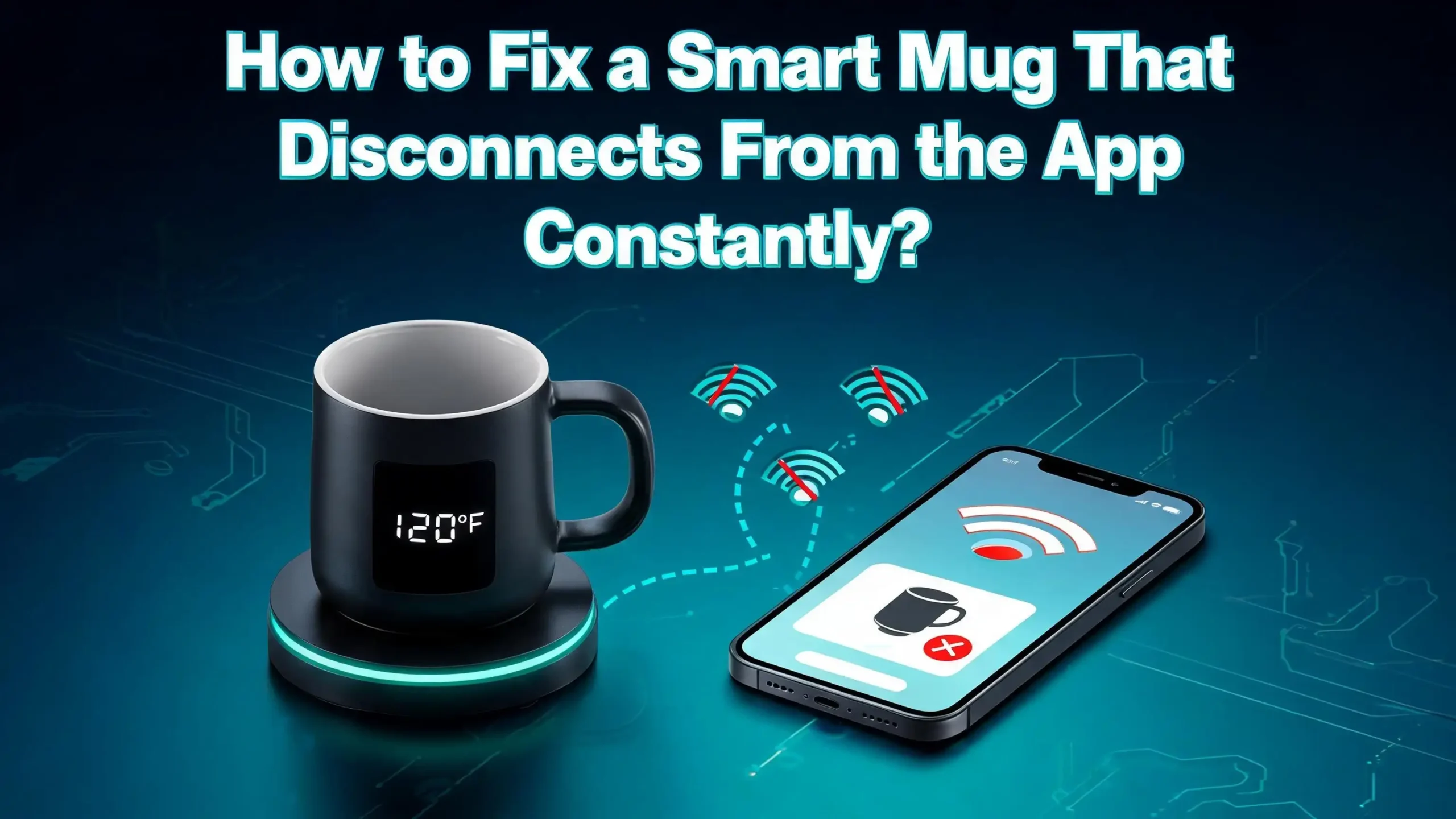
How to Fix a Smart Mug That Disconnects From the App Constantly?
Your smart mug should keep your coffee at the perfect sip temperature for hours. Instead, the app keeps dropping the connection, the LED blinks oddly, and your drink turns lukewarm before you can fix it. That little frustration adds up fast, especially when you paid a premium for a connected mug.
The good news is that most disconnection problems come from a short list of fixable causes. Bluetooth interference, outdated firmware, drained batteries, and stale app data cause the bulk of these dropouts. You rarely need a replacement mug. You just need the right steps, performed in the right order.
This guide walks you through every fix that actually works. You will learn how to reset your mug, repair it cleanly with your phone, reduce wireless interference, update firmware, and stop the cycle of constant disconnections for good. Grab your mug, charge your phone, and let us solve this together.
Key Takeaways
- Bluetooth, not WiFi, runs most smart mugs. Smart mugs like Ember use Bluetooth Low Energy, so the fix lives in your phone’s Bluetooth settings, not your router. Range is short, usually under 30 feet indoors.
- A factory reset solves most stuck connections. Holding the power button for 14 to 15 seconds until the LED flashes red clears the mug’s pairing memory and gives you a clean start.
- Forget the device before repairing. Always remove the mug from your phone’s Bluetooth list before you try to pair it again. Stale pairing data is the top cause of constant dropouts.
- Interference from WiFi routers and other gadgets matters. The 2.4 GHz band is crowded. Microwaves, baby monitors, and dual band routers can knock your mug offline if they sit too close.
- App cache and old firmware cause silent failures. Clearing the app cache on Android and updating both the app and the mug firmware fixes bugs that no reset can touch.
- Battery health affects connection strength. A weak or aging battery cannot hold a steady Bluetooth signal. Keep the mug on its charging coaster between uses.
Understand Why Your Smart Mug Keeps Disconnecting
Smart mugs use Bluetooth Low Energy, also called BLE. This protocol sips power so your mug battery lasts longer, but it also breaks the connection more easily than classic Bluetooth. That trade off is built into the design.
The mug keeps a constant low level link with your phone. The phone tells the mug what temperature to hold, and the mug reports its battery, liquid temperature, and status back. Any small interruption in that link causes a disconnection.
Common causes include a weak mug battery, a phone that has put the app to sleep in the background, Bluetooth interference from your WiFi router, outdated firmware on the mug, corrupted pairing data on your phone, and physical distance beyond the Bluetooth range. Sometimes the cause is the app itself crashing or losing background permissions.
Once you understand the cause, the fix becomes obvious. You are not chasing a ghost. You are working through a short checklist. Each step in this guide targets one of these root causes, starting with the easiest fixes and moving toward the more involved ones. Skip ahead if you already know your specific issue, but most readers will benefit from starting at the top and working down.
Check Your Bluetooth Connection First
Before you reset anything, confirm that Bluetooth itself works on your phone. Open the Bluetooth menu in your phone settings. Make sure the toggle is fully on, not just in pairing mode.
Try connecting another Bluetooth device, like headphones or a speaker. If that other device also drops, the problem is your phone’s Bluetooth radio, not the mug. Restart the phone and test again. A simple phone restart clears more Bluetooth bugs than any other single step.
Next, check that your phone is within Bluetooth range. Bluetooth Low Energy typically reaches 30 feet indoors, but walls, mirrors, and metal appliances cut that range in half. Keep your mug within about 15 feet of your phone during testing.
Also check whether your phone is connected to too many Bluetooth devices at once. Most phones handle five to seven active Bluetooth links before performance suffers. If you have a smartwatch, earbuds, fitness tracker, and car system all paired, disconnect a few during testing.
Finally, look at the location permissions for the mug app. On both Android and iPhone, smart mug apps need location access to scan for Bluetooth devices. If you denied location access, the app cannot find your mug at all. Go to your phone’s app settings and grant location permission, then test again.
Restart Both the Mug and Your Phone
This sounds too simple to work, but it solves a surprising number of cases. A clean restart clears temporary memory on both devices and lets them reconnect from scratch.
Start with the mug. Place it on the charging coaster. Wait 30 seconds. Lift it off. The mug powers down when it sits empty and idle, so this gives it a fresh start. If your mug has a manual power button on the bottom, press it once to cycle the power.
Now restart your phone fully. Do not just lock the screen. Hold the power button and choose restart or power off. Wait a full minute before turning it back on. This step closes background apps that may hold a stale Bluetooth handle.
Once the phone is back on, open the mug app. Watch the connection status. If the mug appears and stays connected for several minutes, you are done. Test by pouring warm water in and watching the temperature update in the app. If the connection holds during normal use, your problem was a temporary memory glitch.
If the mug still disconnects within a few minutes, do not panic. Move to the next step. Most issues that survive a restart need a proper pairing reset, which we cover next.
Forget the Device and Repair Properly
Stale pairing data is the most common cause of constant disconnections. Your phone remembers the mug, but the saved profile is corrupted or out of sync. The fix is to remove the mug from your phone’s memory completely, then pair it fresh.
Open your phone’s Bluetooth settings. Find your smart mug in the list of saved or paired devices. Tap the small information icon or gear next to the mug name. Choose forget device, unpair, or remove. Confirm the action if your phone asks.
Now close the mug app fully. On iPhone, swipe up from the bottom and flick the app off screen. On Android, open recent apps and swipe the mug app away. This forces the app to start fresh on the next open.
Open the mug app again. It should now act as if you have a brand new mug. Follow the in app pairing steps. Most smart mugs need to sit on their charging coaster during pairing, so place your mug on the coaster before you start.
When the app asks, hold the power button on the bottom of the mug until the LED flashes. The app should detect the mug within 10 to 20 seconds. Tap to confirm the pairing. Wait until the app shows a steady connected status before you walk away.
Perform a Factory Reset on the Mug
If forgetting and repairing did not work, the mug itself holds bad data. A factory reset wipes the mug’s memory and restores it to the state it had out of the box. This is safe and does not damage the mug.
For most Ember style smart mugs, hold the power button on the bottom of the mug for 14 to 15 seconds. Do not let go early. You will see the LED change colors and then start flashing red. The red flash means the reset worked. Release the button.
Some mugs require you to hold the button while the mug sits on its charging coaster, and some require the mug to be off the coaster. Check your specific model’s manual if 15 seconds does not trigger the red flash. Other brands may use a small pinhole reset button on the base. Press it with a paperclip for 10 seconds.
After the reset, the mug forgets every phone it was ever paired with. You must now repeat the forget device step on your phone, because your phone still thinks it knows the mug. Remove the mug from your phone’s Bluetooth list, then pair from scratch through the app.
A factory reset solves stubborn cases where the mug refuses to leave pairing mode, will not accept firmware updates, or disconnects within seconds of every connection. It is your reset button when nothing else works.
Update the Mug Firmware
Outdated firmware causes silent connection failures. The mug maker pushes firmware updates through the app to fix Bluetooth bugs, improve battery management, and patch security holes. Skipping updates leaves you stuck with old bugs.
Open the mug app and look for a firmware or device update menu. Many apps hide this under settings, then device info, then firmware version. If an update is available, the app will prompt you to start it.
Before you update, place the mug on its charging coaster and fill it about half full with hot water. The mug needs to stay awake during the update, and a warm liquid keeps the sensor active. Plug the coaster into a wall outlet, not a USB hub, for steady power.
Keep your phone within three feet of the mug during the entire update. Do not lock the phone screen. Firmware updates can take 10 to 20 minutes and any interruption forces you to start over. If the update fails, reset the mug as described above and try again with a fresh battery charge.
After the update finishes, the mug usually restarts on its own. Wait two minutes before you test the connection. Updated firmware almost always improves Bluetooth stability, so this step often solves chronic disconnect problems that no reset could fix.
Clear the App Cache and Reinstall
The mug app stores cached data on your phone. Over time, that cache fills with corrupted pairing tokens, old session data, and broken settings. Clearing the cache forces the app to rebuild from scratch.
On Android, open Settings, then Apps, then find your mug app. Tap Storage. You will see two buttons: Clear Cache and Clear Data. Tap Clear Cache first and test the app. If the problem continues, tap Clear Data, which logs you out and removes all saved settings.
On iPhone, there is no direct cache clear button. Instead, delete the app entirely and reinstall it from the App Store. Your account settings live in the cloud, so you will not lose your mug presets when you sign back in.
After clearing the cache or reinstalling, open the app and sign in. You may need to pair the mug again, so have it ready on the charging coaster. Grant all permissions the app requests, including Bluetooth, location, and background app refresh.
A fresh app install often fixes problems that survive every other step. It is especially useful after a major phone operating system update, when the old app version may not work properly with the new OS. Combine this step with a firmware update for the best results.
Reduce Bluetooth and WiFi Interference
Bluetooth and WiFi both use the 2.4 GHz radio band. When they share the same crowded space, they fight for airtime. Your smart mug is the small device in that fight, and it usually loses.
Move your mug at least four to five feet away from your WiFi router. Routers blast strong 2.4 GHz signals that drown out Bluetooth Low Energy. The same rule applies to microwave ovens, baby monitors, and wireless security cameras. These devices all create interference on the same band.
If your router supports both 2.4 GHz and 5 GHz, connect your phone to the 5 GHz network instead. This frees up the 2.4 GHz band for your Bluetooth devices. Most modern routers let you split the bands in the admin settings.
Check your router channel settings too. The 2.4 GHz band uses channels 1 through 11 in most regions. Stick to channels 1, 6, or 11, because they do not overlap. Set the channel width to 20 MHz rather than 40 MHz, which leaves more room for Bluetooth traffic.
Also count how many active Bluetooth devices live in your home. Smart speakers, fitness trackers, earbuds, smart bulbs, and door locks all compete for the same airwaves. Turn off devices you are not actively using during your mug testing. If the mug stays connected with everything else off, you have identified an interference problem.
Check the Mug Battery and Charging Coaster
A weak battery cannot hold a steady Bluetooth connection. The mug’s radio is the first thing to fail when power runs low. If your mug disconnects after sitting off the coaster for 30 minutes, the battery is the likely culprit.
Place the mug on its charging coaster for at least two hours. Most coasters show a light when charging, then change color when the battery is full. Make sure the coaster itself is plugged into a working outlet. USB ports on computers and hubs often deliver too little power.
Inspect the charging contacts on the bottom of the mug and the top of the coaster. Coffee spills and limescale build up and block the electrical connection. Wipe both surfaces with a damp cloth, then dry them completely. Never submerge the mug or coaster in water.
If your mug is more than two years old, the battery may be aging. Lithium ion batteries lose about 20 percent of their capacity after 500 charge cycles. A tired battery causes more frequent disconnects, shorter heat times, and faster drainage. You can contact the maker for battery service, since most smart mugs do not have user replaceable batteries.
Keep the mug on the coaster between uses. This habit alone solves many connection complaints. A fully charged mug is a stable mug.
Keep the App Running in the Background
Your phone tries to save battery by closing apps that sit idle. When the mug app gets closed, your phone drops the Bluetooth link with the mug. This looks like a disconnection, but it is really the phone shutting down the connection on purpose.
On Android, open Settings, then Apps, then your mug app. Find Battery or Battery Usage. Set the app to Unrestricted or Allow background activity. This stops Android from killing the app in the background.
On iPhone, open Settings, then General, then Background App Refresh. Make sure the toggle is on for your mug app. Also check Settings, then your mug app, and confirm Bluetooth permission is set to Always rather than While Using.
Disable any battery saver or power saving modes while you test. These modes aggressively close background apps and crush Bluetooth performance. You can turn power saving back on once you confirm the mug stays connected normally.
If your phone has a feature called Adaptive Battery, Optimized Battery, or App Sleep, exclude the mug app from it. These features learn which apps you use rarely and put them to sleep. The mug app needs to run continuously, even when you are not looking at it.
Test on a Different Phone
If nothing has worked, test the mug with a different phone. This step tells you whether the problem lives in the mug or in your original phone. Borrow a family member’s phone for ten minutes.
Install the mug app on the second phone. Sign in with your account, or create a guest account if the app supports it. Pair the mug with the new phone using the steps from earlier in this guide. Watch how the connection behaves over the next 30 minutes.
If the mug stays connected to the second phone with no problem, your original phone has a Bluetooth issue. Possible causes include a damaged Bluetooth antenna, a buggy operating system update, or a hardware fault. Reset your phone’s network settings as a final step before considering repair.
If the mug disconnects from the second phone too, the mug itself is the problem. At this point, you have ruled out every software fix. Contact the mug maker for warranty service. Most smart mugs come with a one year warranty that covers connection defects.
Keep records of the steps you tried. Customer support will ask whether you reset the mug, updated the firmware, and tested with a second phone. Walking in with that information speeds up the warranty claim. Be ready to share your mug’s serial number, which usually sits on the bottom of the base.
Contact Support and Consider Warranty Service
When self troubleshooting hits a wall, the maker’s support team is your next stop. They have access to diagnostic tools you do not, and they can authorize a replacement if your mug is defective. Do not feel embarrassed to reach out.
Visit the maker’s website and find the support section. Most companies offer email, live chat, and phone support. Have your order number, serial number, and a short summary of the steps you already tried ready. This information speeds up the conversation.
Be polite and patient. Support agents handle hundreds of cases a day. A clear, friendly message gets faster service than an angry complaint. Describe the problem in one or two sentences, then list what you tried.
If the mug is under warranty, the company usually sends a prepaid shipping label and a replacement. Warranty periods range from one to two years, depending on the maker and region. Keep your original receipt or order confirmation as proof of purchase.
If the warranty has expired, ask about paid repair or trade in options. Some makers offer discounted replacements for loyal customers. It never hurts to ask. In the worst case, you can recycle the old mug responsibly through an electronics recycling program and move on with better knowledge for your next purchase.
Frequently Asked Questions
Why does my smart mug disconnect every time I lift it from the table?
Lifting the mug can briefly break the Bluetooth signal if your phone sits far away or behind a wall. The mug may also dim its radio when it detects motion to save battery. Keep your phone within 15 feet and on the same side of any wall.
Can I use my smart mug without the app?
Yes. Most smart mugs hold their last set temperature even when the app is closed or out of range. The app is mainly for changing presets, checking battery, and adjusting the LED color. You can drink from the mug normally without ever opening the app again.
Does the mug need WiFi to work?
No. Almost every smart mug on the market uses Bluetooth, not WiFi. The mug talks directly to your phone over Bluetooth Low Energy. Your home WiFi is not involved, except as a possible source of 2.4 GHz interference.
How long should a smart mug battery last on one charge?
A typical smart mug holds temperature for 60 to 90 minutes off the coaster. If your battery drops faster than that, the cells are aging or the heating element is working harder than normal. Keep the mug on the coaster between uses to extend battery lifespan.
Is it safe to factory reset my mug often?
Yes. Factory resets only clear pairing data and stored settings. They do not wear out the mug or shorten its lifespan. You can reset as often as needed without harm. Just remember to forget the mug on your phone after each reset for a clean repair.

Hi, I’m Luna! I’m the voice behind CoffeePickster.com. I’m a coffee obsessive who’s spent way too many hours (and dollars) testing coffee makers so you don’t have to. I created this blog to help fellow coffee lovers find the right gear without the guesswork. Let’s brew something great together!