What to Do When RFID Enabled Coffee Pods Fail to Read?
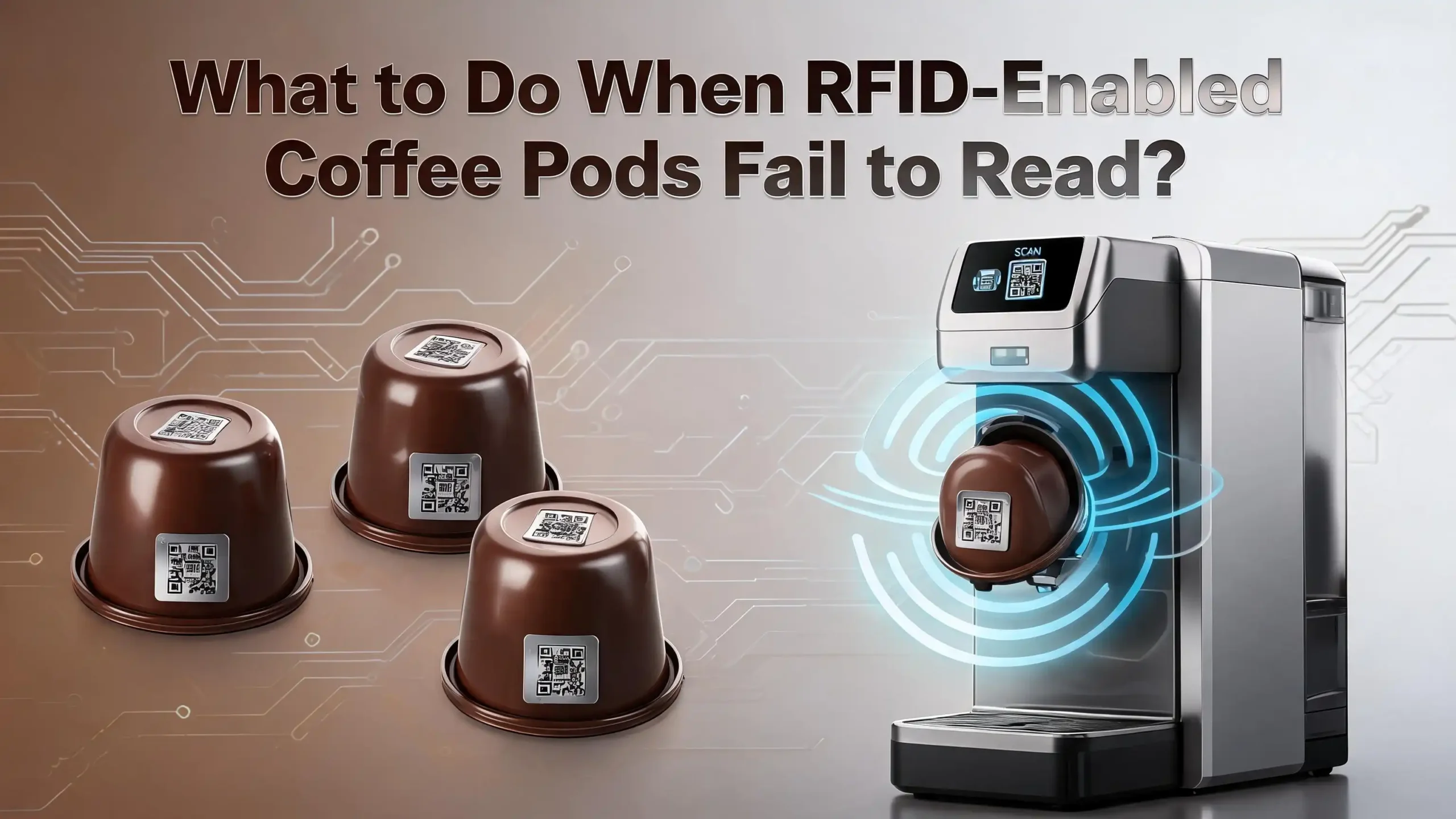
RFID enabled coffee pods use small tags, barcodes, or infrared ink to communicate with your machine. The machine reads this information to identify the pod type, adjust brew settings, and confirm compatibility. This technology exists in popular systems like the Nespresso Vertuo line, Keurig 2.0 and Smart models, and several other modern brewers.
The problem is that this clever system can fail. Coffee residue builds up on sensors. Pod barcodes get scratched. Firmware glitches cause false errors. Thousands of coffee lovers deal with these issues every single day.
The good news? Most of these problems have simple fixes you can do at home in minutes. You do not need to call a technician or buy a new machine right away.
This guide walks you through every possible cause and solution, from a quick sensor wipe to a full factory reset. By the end of this post, you will know exactly how to get your coffee machine back to brewing.
Key Takeaways
- Dirty sensors cause most read failures. Coffee residue, oils, and dried grounds accumulate on the barcode reader or RFID sensor over time. A simple wipe with a damp cloth or cotton swab fixes this issue in the majority of cases. Regular cleaning prevents the problem from returning.
- Damaged pods trigger recognition errors. A scratched barcode, dented rim, or cracked pod surface can stop your machine from reading the tag. Always inspect your pods before use and store them in a cool, dry place away from direct sunlight.
- A machine reset resolves many software glitches. Unplugging your coffee maker for 30 to 60 seconds can recalibrate the sensor system. Some machines also offer a factory reset option through button combinations or a connected app.
- Pod compatibility matters more than you think. Machines with RFID or barcode verification systems only accept specific pod formats. Using the wrong pod type or a third party pod without the correct marking will always produce an error.
- Firmware updates can fix persistent recognition problems. Some connected coffee machines receive software updates that improve pod detection. Check your machine’s app or the manufacturer’s website to see if an update is available.
- Professional service is the last resort. If cleaning, resetting, and updating do not solve the issue, your sensor hardware may be faulty. Contact the manufacturer for repair options, especially if the machine is still under warranty.
How RFID and Barcode Technology Works in Coffee Pods
Modern coffee machines use different forms of identification technology to read pods. The most common systems include RFID tags, printed barcodes, and infrared ink markers. Each system serves the same basic purpose. It tells the machine what type of pod is inside so the brewer can adjust water volume, temperature, and brew time automatically.
Nespresso Vertuo machines use a barcode system printed around the rim of each capsule. The machine spins the pod at high speed and reads the barcode through a clear plastic ring surrounding the pod holder. This barcode contains all the brewing instructions for that specific coffee blend.
Keurig 2.0 and Smart models use a different approach. These machines rely on proprietary infrared ink printed on the pod’s lid. The machine shines infrared light on the ink and measures the wavelength reflected back. If the ink pattern does not match, the machine refuses to brew. Keurig Smart models go even further with a small camera that reads visual codes on pods.
Understanding which technology your machine uses is the first step to fixing a read failure. The sensor location, cleaning method, and troubleshooting steps differ based on the system. Check your machine’s user manual or the manufacturer’s website to confirm which pod identification method your brewer uses.
Common Reasons Why Coffee Pods Fail to Read
Several factors can cause your coffee machine to reject a pod. The most frequent cause is a dirty sensor. Coffee oils, dried grounds, and moisture build up on the reader over time. This thin layer of residue blocks the sensor from reading the pod’s tag or barcode clearly.
Physical damage to the pod itself is another common cause. A scratch across the barcode area, a dent in the capsule rim, or a torn foil lid can all prevent successful scanning. Pods that have been stored improperly may also develop condensation that smudges the printed code.
Alignment problems happen more often than most people realize. On Keurig Smart machines, the barcode on the pod lid needs to face a specific direction relative to the needle puncture holes. If the barcode sits directly under a puncture point, the hole destroys the code and the machine cannot read it.
Software and firmware issues can also cause read failures. A machine that has not been updated may struggle with newer pod designs. Power surges or interrupted brew cycles can sometimes corrupt the sensor’s calibration. In some cases, the machine simply needs a restart to clear a temporary error in its memory.
Step by Step Guide to Cleaning the Pod Sensor
Cleaning the sensor is the single most effective fix for pod recognition errors. This process takes less than five minutes and solves the problem for the majority of users. Here is how to do it based on your machine type.
For Nespresso Vertuo machines, start by unplugging the machine and opening the lid. Look at the pod holder area. You will see a clear plastic ring surrounding the capsule compartment. This ring is the barcode reader. Use a damp microfiber cloth or a cotton swab to clean this ring thoroughly. Wipe all the way around it, pressing gently into the groove. Remove all visible coffee residue and dried grounds. Let the area dry completely before closing the lid.
For Keurig 2.0 and Smart machines, locate the sensor near the top needle area inside the lid. On Smart models, there is a small camera lens that reads the pod. Use a damp cotton swab to gently wipe this lens clean. Also check the small air holes near the camera. These holes blow air across the lens to keep it clear during brewing. If they are clogged, use a thin pin or toothpick to clear them.
After cleaning, plug the machine back in and run a water only cycle without a pod. This rinse cycle flushes out any loose debris inside the system. Then insert a pod and try brewing again. Most users report immediate success after a thorough sensor cleaning.
How to Inspect Your Coffee Pods for Damage
Before blaming your machine, take a close look at the pod itself. A damaged pod is a very common source of read errors that many people overlook. Pick up the pod and examine it carefully under good lighting.
Check the barcode or printed code area first. On Nespresso Vertuo capsules, the barcode is printed around the outer rim of the pod’s flat bottom. Look for scratches, smudges, or faded printing. Even a small scratch across a critical part of the barcode can stop the machine from reading it. On Keurig pods, examine the foil lid for tears, wrinkles, or scuff marks over the printed area.
Feel the pod for dents or deformations. A pod that has been dropped or crushed may not sit properly in the holder. If it does not seat correctly, the sensor cannot align with the code. The pod needs to sit flat and level in its compartment for a successful read.
Check the expiration date on your pods as well. Very old pods may have degraded printing that no longer scans properly. The adhesive on the lid can also break down over time, causing the foil to wrinkle or peel. If you find a damaged pod, set it aside and try a fresh one from a different box. This simple test helps you determine whether the problem is with the pod or the machine.
Resetting Your Coffee Machine to Fix Read Errors
A machine reset is one of the quickest troubleshooting steps you can try. It clears temporary software errors and recalibrates the sensor system. Many users report that a simple reset fixes persistent pod recognition problems instantly.
The most basic reset method works for almost every coffee machine. Unplug the machine from the wall outlet. Wait at least 30 to 60 seconds. Then plug it back in. This power cycle forces the machine’s internal processor to restart fresh. On machines with digital displays, you may see a brief startup sequence.
For Nespresso Vertuo machines, you can perform a factory reset by opening and closing the lid, then pressing the button five times within three seconds. The exact button combination varies by model, so check your user manual. The Nespresso app also offers guided reset options for connected machines like the Vertuo Next.
Keurig Smart machines can be reset through the touchscreen menu. Go to Settings, then look for a Reset or Restore Factory Settings option. On older Keurig 2.0 models without a touchscreen, unplug the machine, remove the water reservoir, wait five minutes, reassemble, and plug it back in.
After any reset, run a cleansing brew with just water before inserting a pod. This ensures the system is fully recalibrated and ready to read your next capsule.
Fixing Pod Alignment and Seating Issues
Proper pod placement is critical for a successful scan. If the pod is not seated correctly in the holder, the sensor cannot line up with the barcode or RFID tag. This causes the machine to report a “pod not recognized” error even with a perfectly good capsule.
On Nespresso Vertuo machines, the pod must sit flat in the capsule holder with the barcode facing down. The holder is spring loaded, so press the pod down gently until you feel it settle into position. If the pod seems to sit higher than usual, check for coffee grounds or debris underneath it. Even a small particle can tilt the pod enough to cause a read failure.
Keurig users should pay attention to barcode orientation on the pod lid. On Smart models, the top needle pierces the lid in a specific pattern of five holes. If the barcode area lines up with these puncture points, the needle destroys part of the code. Rotate the pod so the barcode area sits at the 12 o’clock position, away from the large puncture holes. Several users have confirmed this simple rotation trick solves their read problems immediately.
Also check that the pod holder itself moves freely. On some machines, the holder can become stuck or stiff due to dried coffee buildup. Clean the holder area and make sure it moves up and down without resistance. A properly seated pod in a clean holder gives the sensor the best chance of a successful read.
Dealing with Third Party Pod Compatibility Problems
If you use pods from a brand other than your machine’s manufacturer, compatibility is likely the root cause of your read error. Machines with RFID or barcode verification systems are specifically designed to work with authorized pods only.
Keurig 2.0 machines were the first major brewers to introduce this type of restriction. The machine checks for proprietary infrared ink on the pod lid before it allows brewing. Third party pods that lack this ink pattern are automatically rejected. Keurig faced significant backlash for this decision and eventually relaxed some restrictions, but compatibility issues still exist with certain models.
Nespresso Vertuo machines only work with pods that carry the Vertuo barcode system. Original line Nespresso pods are not compatible with Vertuo machines, and vice versa. Some users accidentally purchase the wrong pod format, which always results in a recognition error.
Before purchasing third party pods, verify they are certified as compatible with your exact machine model. Look for markings on the pod packaging that confirm compatibility. Many third party manufacturers now produce pods with the correct barcode or ink technology built in.
If you already own incompatible pods, some machine owners have found a workaround. On Keurig 2.0 models, cutting the infrared ink strip from an official pod and taping it near the sensor can allow the machine to accept other pods. This workaround is well documented but may not work on all models. Use it at your own discretion.
Running a Descaling Cycle to Improve Sensor Performance
Descaling removes mineral buildup from your machine’s internal water system. While descaling primarily addresses water flow and taste issues, it can also improve pod recognition in some cases. Mineral deposits and coffee oils can migrate to sensor areas and reduce scanning accuracy over time.
Most manufacturers recommend descaling every three to six months, depending on your water hardness and usage frequency. Nespresso provides its own descaling solution, and the process is activated by a specific button combination on Vertuo machines. The solution runs through the entire brewing system and flushes out calcium deposits and residue.
For Keurig machines, fill the reservoir with a descaling solution or a mixture of white vinegar and water. Run several brew cycles without a pod to flush the solution through the system. Then run at least three cycles with fresh water to rinse out any remaining solution.
After descaling, take the extra step of cleaning the sensor area again. The descaling process can loosen debris that then settles on the barcode reader or camera lens. A final wipe of the sensor area after descaling ensures everything is clean. Users who descale regularly report fewer pod recognition errors and better overall machine performance.
Checking for Firmware Updates on Smart Coffee Machines
Connected coffee machines can receive firmware updates that fix bugs, improve pod recognition, and add support for new pod types. If your machine has Wi-Fi or Bluetooth connectivity, checking for updates should be part of your troubleshooting routine.
The Nespresso Vertuo Next connects to Wi-Fi and receives updates through the Nespresso app. Open the app, select your machine, and check for available updates. Some users have reported that firmware updates resolved persistent capsule recognition errors that no amount of cleaning could fix. The update process typically takes a few minutes and happens automatically once initiated.
Keurig Smart brewers also receive automatic updates when connected to Wi-Fi. You can check the update status through the machine’s settings menu or the Keurig app. If your machine has not been connected to Wi-Fi in a while, connect it and allow time for any pending updates to download and install.
Keep in mind that firmware updates occasionally introduce new issues. If your pod recognition problems started immediately after an update, a factory reset may help. You can also contact the manufacturer to report the issue. They may release a patch or provide specific troubleshooting steps for update related problems. Staying current with firmware is generally the best practice for any connected appliance.
When to Contact the Manufacturer for Support
If you have tried cleaning, resetting, updating firmware, and checking pod compatibility without success, the problem likely involves a hardware failure in the sensor itself. At this point, contacting the manufacturer is the best next step.
Most coffee machine manufacturers offer warranty coverage that includes sensor and reader repairs. Nespresso typically provides a two year warranty on Vertuo machines, and Keurig offers a one year limited warranty on most models. Check your purchase receipt or registration confirmation to verify your warranty status.
When you contact support, have the following information ready: your machine model and serial number, a description of the error message or light pattern, and a summary of all troubleshooting steps you have already tried. This information helps the support agent diagnose the issue faster and avoid asking you to repeat steps.
Nespresso has been known to offer discounts on replacement machines even for out of warranty units, especially if the issue is a known defect. Keurig’s support team may also provide replacement options. Do not assume you need to buy a new machine at full price. A quick phone call could save you significant money. Always explore your support options before making a purchase decision.
Preventing Future Pod Read Failures with Regular Maintenance
Prevention is always easier than troubleshooting. A few simple habits can keep your coffee machine’s sensor system in excellent condition and dramatically reduce the chances of pod read failures.
Make it a routine to wipe the sensor area once a week. Use a damp cloth or cotton swab to clean the barcode reader ring, camera lens, or infrared sensor. This takes less than a minute and removes the coffee residue that gradually accumulates from steam and brewing splatter.
Run a water only rinse cycle at least once a week. Simply close the lid without a pod and run a brew cycle. This flushes loose coffee grounds and oils from the internal system. It also helps keep the area around the pod holder clean.
Store your coffee pods properly. Keep them in their original packaging or in an airtight container at room temperature. Avoid storing pods in direct sunlight, near heat sources, or in humid environments like above the stove. Heat and moisture can warp pod shapes and degrade printed barcodes.
Descale your machine on the schedule recommended by the manufacturer. For most households, this means every three months. If you have hard water, consider descaling monthly. Set a recurring reminder on your phone so you do not forget. Consistent maintenance keeps every part of your machine working correctly, from the water pump to the pod sensor.
Understanding Error Codes and Warning Lights
Your coffee machine communicates problems through specific error codes, warning lights, or app notifications. Learning what these signals mean helps you identify the exact issue and choose the right fix.
On Nespresso Vertuo machines, a double orange blink usually indicates a capsule recognition failure. A steady red light can mean several things, including an overheated machine, an empty water tank, or a lid that is not properly closed. The Nespresso app provides detailed error descriptions for connected machines, making diagnosis much easier than reading light patterns alone.
Keurig machines display text error messages on their screens. Common messages include “Pod Not Recognized,” “Oops! This Pack Wasn’t Designed for This Brewer,” and “Classic Brew” (which means the machine cannot read the pod’s smart code and defaults to basic settings). Each message points to a different type of issue.
Keep your machine’s user manual accessible for quick reference. Most manufacturers also publish troubleshooting guides on their websites. When you see an unfamiliar error, look it up before you start disassembling things. The error code often tells you exactly which component needs attention, saving you time and effort in the troubleshooting process.
Alternatives When Your Machine Cannot Be Fixed
Sometimes a coffee machine’s sensor fails permanently and repair costs exceed the value of the machine. If you reach this point, you have several practical options to consider before spending money on a new brewer.
First, check if your machine can brew without pod verification. Some older models have a manual brew mode that bypasses the sensor system entirely. This mode may not adjust brew settings automatically, but it still makes coffee. Check your user manual or search online for your specific model’s manual override options.
Second, consider whether a reusable pod adapter might work. Refillable pod systems let you use your own ground coffee and often do not require the machine to read any tag. On some Keurig models, refillable pods designed for that specific machine line can bypass the DRM check entirely.
Third, evaluate repair versus replacement costs honestly. If a sensor repair costs more than half the price of a new machine, buying a replacement is usually the better financial decision. Look for manufacturer refurbished units, which often come at a significant discount with a limited warranty included.
Finally, if you decide to buy a new machine, consider models with simpler pod systems that have fewer sensor related failure points. Read user reviews with a focus on long term reliability. Many coffee lovers find that machines with straightforward pod designs deliver the same great coffee with far less frustration.
Frequently Asked Questions
Why does my Nespresso Vertuo keep saying capsule not recognized?
This error almost always means the barcode reader is dirty. The clear plastic ring around the pod holder accumulates coffee residue over time. Unplug your machine and clean this ring thoroughly with a damp microfiber cloth or cotton swab. Pay special attention to the groove around the pod holder, as dried coffee collects there. Run a rinse cycle after cleaning and try again. If cleaning does not work, try a different pod to rule out a damaged capsule.
Can I use third party pods in machines with RFID sensors?
It depends on the specific machine and the third party pod. Some third party manufacturers produce pods with the correct barcode or ink technology for specific machine models. Always check the pod packaging for compatibility information before purchasing. Using a pod without the proper identification tag will result in a read error on machines that require verification.
How often should I clean the pod sensor on my coffee machine?
A weekly wipe of the sensor area is ideal for most households. If you brew multiple cups per day, consider cleaning the sensor every three to four days. Regular cleaning prevents the gradual buildup of coffee oils and residue that causes most read failures. A quick wipe with a damp cloth takes less than a minute and saves you from frustrating error messages.
Will a factory reset delete my brew settings and preferences?
Yes, a factory reset restores the machine to its original default settings. Any saved preferences, brew sizes, or Wi-Fi connections will need to be set up again. However, this is a small inconvenience compared to dealing with ongoing pod recognition errors. You can usually reconfigure your preferences within a few minutes after the reset completes.
My pods are not expired and my sensor is clean but I still get errors. What else can I try?
Check for a firmware update if your machine has Wi-Fi or Bluetooth connectivity. An outdated firmware version can cause recognition failures with newer pod designs. Also try rotating the pod to a different orientation in the holder, as barcode alignment can affect scanning. If nothing works, the sensor hardware itself may be faulty, and contacting the manufacturer for repair or replacement is your best remaining option.
Does descaling help with pod recognition problems?
Descaling primarily addresses mineral buildup in the water system, but it can indirectly help with pod recognition. The descaling process flushes debris from the brewing chamber that may have settled on sensor components. Combine descaling with a thorough sensor cleaning for the best results. Regular descaling every three months keeps your entire machine in good working condition.

Hi, I’m Luna! I’m the voice behind CoffeePickster.com. I’m a coffee obsessive who’s spent way too many hours (and dollars) testing coffee makers so you don’t have to. I created this blog to help fellow coffee lovers find the right gear without the guesswork. Let’s brew something great together!