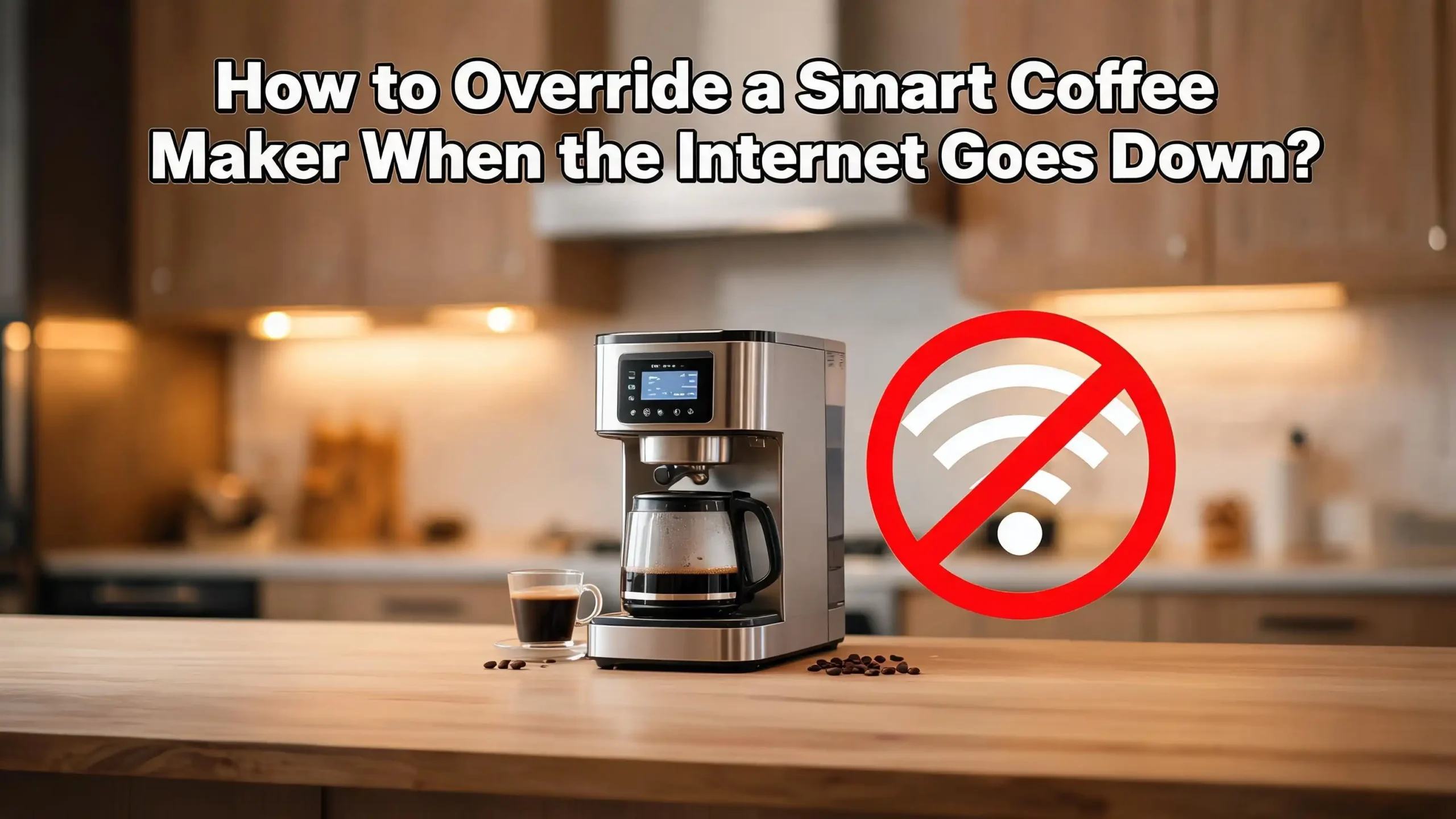
How to Override a Smart Coffee Maker When the Internet Goes Down?
Your morning routine depends on that first cup of coffee. You wake up, stumble to the kitchen, and reach for your phone to start the brew. Then you see it. No internet connection. The smart coffee maker sits silent, mocking your sleepy brain with its dark screen and unresponsive app.
This scenario plays out in millions of homes every week. Smart coffee makers from Keurig, Nespresso, Bosch, Hamilton Beach, and Atomi rely on WiFi to receive commands from your phone.
This guide walks you through every practical method to brew coffee when your internet fails. You will learn manual overrides, hotspot tricks, factory tips, and quick fixes that work in under a minute. No technical skills needed. Just follow the steps and get your caffeine back on schedule.
In a Nutshell
- Use the physical buttons first. Every smart coffee maker has manual controls on the body. Press the power button, select your cup size, and hit brew. The machine works without WiFi for basic brewing.
- Switch your phone to mobile hotspot. Turn on your phone’s hotspot and connect both your phone and the coffee maker to it. The app then talks to the machine through cellular data.
- Try local Bluetooth control. Some smart coffee makers connect through Bluetooth as a backup. Open the app while standing close to the machine. Bluetooth often works when WiFi fails.
- Reset your router before blaming the coffee maker. Unplug the router for sixty seconds, then plug it back in. This fixes most outages in under three minutes.
- Check for an offline or local mode in the app. Brands like Keurig, Bosch Home Connect, and Atomi offer offline brewing menus hidden in the settings.
- Keep a manual backup pour over or French press. When all else fails, hot water and ground coffee still brew a cup. Old school always wins.
Understand Why Your Smart Coffee Maker Needs the Internet
Smart coffee makers use WiFi for three main reasons. First, they connect to a cloud server run by the brand. Second, they receive commands from your phone app through that cloud. Third, they get firmware updates and voice assistant integration.
When your internet drops, the cloud link breaks. Your phone cannot reach the coffee maker, even if both sit in the same room. This feels strange because the devices are inches apart. The signal still travels through servers far away.
Most smart coffee makers do not need the cloud to brew. The internet is needed only for remote control and scheduling. The brewing itself happens locally inside the machine. This means the hardware still works. You just need a different way to send commands.
Knowing this changes how you react during an outage. You stop trying to fix the app. You start looking at the physical machine. The buttons on the body are your direct line to the brewing system. They bypass WiFi, the cloud, and the app entirely.
Some brands like Keurig SMART and Hamilton Beach Smart Connect are designed for full offline use. Others like Nespresso Expert and Atomi Smart lean more on the app. Either way, manual control exists. You just need to find it.
Locate the Physical Override Buttons on Your Coffee Maker
Every smart coffee maker ships with a control panel. Manufacturers hide these buttons sometimes behind sleek touch panels or capacitive surfaces. Look closely at the top, front, or side of the unit.
On a Keurig K-Supreme SMART, you will find a power button, cup size buttons, and a brew button on the top panel. These work without WiFi from day one. Press the power button. Wait for the machine to heat up. Choose your cup size. Press brew. That is the full override sequence.
On Nespresso Vertuo and Expert models, the lever and single button handle everything. Insert a pod, close the lever, and tap the button. The machine reads the pod barcode and brews automatically. No app, no WiFi, no cloud.
Hamilton Beach Smart Connect coffee makers have a full button panel on the front. Programmable controls for time, strength, and cup count all work locally. Bosch and Siemens Home Connect machines have touch screens on the body that mirror almost every app function.
If your machine has a touchscreen, swipe through the menus until you find brew options. The screen is your local control center. Avoid the app entirely during an outage. Type your settings directly on the machine. The brew starts the moment you confirm.
Try the Mobile Hotspot Trick for App Control
Your phone’s cellular data can replace your home WiFi in minutes. This method works when you really want the app features back. Turn your phone into a temporary router.
On an iPhone, go to Settings, then Personal Hotspot, and toggle it on. On Android, open Settings, then Network, and tap Mobile Hotspot. Set a password if you want one. Your phone now broadcasts a WiFi signal using cellular data.
Next, you need to connect your coffee maker to this hotspot. Most machines remember only one WiFi network. To switch, you must reset the WiFi setup. Open the coffee maker app and look for the device settings. Tap forget network or reset WiFi.
Walk through the setup wizard again. Choose your phone’s hotspot name as the new network. Enter the password you created. The coffee maker connects through cellular data. The app now controls the machine as normal.
This works best on phones with strong 4G or 5G signals. Note that brewing commands use very little data. You will not blow through your data plan by making coffee. However, do not leave the hotspot on all day. Switch back to your home WiFi once it returns.
Use Bluetooth as a Local Backup Connection
Some smart coffee makers connect through Bluetooth in addition to WiFi. Bluetooth works without any internet at all. It is a direct radio link between your phone and the machine.
Check your coffee maker’s manual or app settings for a Bluetooth option. Brands like Jura Smart Connect and certain Bosch Home Connect models offer this feature. The connection range is around thirty feet, which is fine for a kitchen.
To activate Bluetooth control, open the app and look for a local mode or offline mode toggle. Pair the device the same way you pair headphones. Once paired, you can brew, schedule, and adjust settings without WiFi.
Bluetooth has limits. You cannot control the machine from another room or while away from home. Voice assistants like Alexa and Google Home also stop working. They depend on the cloud, which depends on the internet.
Still, Bluetooth fills the gap during short outages. Keep your phone within range. Use the app exactly as you normally would. The brewing experience feels identical. Many users never notice their internet is down.
If your machine does not support Bluetooth, this method is not an option. Check the spec sheet on the brand website to confirm.
Reset Your Home Router Before Anything Else
Before assuming the worst, test your router. Most internet outages are local router glitches, not service provider failures. A quick reset fixes the problem more often than not.
Find your router. It is usually a small box with blinking lights near your modem. Unplug the power cable from the back. Wait sixty full seconds. Do not rush this step. The capacitors inside need time to discharge.
Plug the cable back in. Watch the lights. After two to three minutes, the WiFi indicator should glow steady. Open your phone’s WiFi settings. Reconnect to your home network. Test by loading a website.
If the internet returns, your coffee maker should reconnect automatically within thirty seconds. No further action needed. Open the app and brew as usual.
If the lights show red or never stabilize, the issue is with your service provider. Call them or check their outage map online. Sometimes the fix is on their end and takes hours.
In that case, fall back to manual buttons or hotspot mode. The router reset takes three minutes total. Try it before any other troubleshooting. It saves time and frustration on most outages.
Power Cycle the Coffee Maker Itself
Sometimes the coffee maker freezes when it loses WiFi mid task. The screen shows a loading icon. The buttons stop responding. A simple power cycle clears the memory and restores manual control.
Unplug the coffee maker from the wall outlet. Wait thirty seconds. This step matters because the internal capacitors hold a small charge. Skipping the wait leads to incomplete resets.
Plug the machine back in. The startup sequence runs. Lights blink. The screen wakes up. After about ninety seconds, the machine reaches idle mode. The physical buttons now work normally.
This trick works on Keurig SMART models, Atomi WiFi coffee makers, and most Home Connect machines. It also clears stuck error codes related to lost connections. Think of it as a fresh start without losing your settings.
Your saved brew preferences stay intact in most cases. Cup size, strength, and schedules return when WiFi comes back. If the machine asks you to reconnect to WiFi, skip the prompt. Use manual buttons until your internet returns.
Power cycling is safe and recommended by every manufacturer. Do it whenever the coffee maker behaves strangely during an outage. It is the universal fix for stuck smart appliances.
Brew Using the Machine’s Default Settings
Smart coffee makers remember the last successful brew settings. Even without app input, the machine knows your preferences. This is your shortcut during an outage.
Press the power button to wake the machine. Look at the display. You should see the last used cup size or brew strength highlighted. Press the brew button without changing anything. The machine starts brewing with your previous settings.
This is the fastest way to get coffee in an emergency. No menu diving. No app login. No troubleshooting. Three button presses and you are done. Power, select if needed, brew.
For programmable models like Hamilton Beach Smart Connect, the scheduled brew time still triggers. The machine has its own internal clock. If you set it to brew at seven in the morning yesterday, it brews at seven this morning too. Your schedule survives the outage.
Take advantage of this by setting default preferences when WiFi works. Save your favorite cup size as default. Set a daily brew time. The machine then runs on autopilot during any outage.
This is the simplest override of all. It requires no extra steps and no technical knowledge. Smart coffee makers are designed to keep brewing even when everything else fails.
Check the App for Offline Mode Settings
Some apps include a hidden offline mode. This feature lets you control the machine through your home network only, without cloud access. It works when your router runs but your internet provider is down.
Open the Keurig app, Home Connect app, or your brand’s specific app. Go to settings. Look for terms like local control, offline mode, LAN mode, or direct connection. Tap it to enable.
Once activated, the app sends commands directly to the coffee maker through your local WiFi. The cloud is bypassed entirely. Your home router becomes the only link needed. This works even during major provider outages.
Not every brand offers this feature. Bosch Home Connect, Jura Smart Connect, and some Atomi models support it. Keurig partially supports it through the SMART menu. Check the app help section to confirm.
If offline mode exists, enable it now before any future outage. Configure it while your internet works. Then it is ready to use the moment things fail.
This is the closest experience to normal app control during an outage. You keep schedules, recipe presets, and remote start. The only thing missing is voice assistant integration. For most users, that trade is worth it.
Use Voice Commands Through a Local Hub
If you have a smart home hub like SmartThings, Hubitat, or Home Assistant, voice commands can work without internet. These hubs run locally on your network.
Home Assistant in particular shines here. Install it on a Raspberry Pi or small server. Connect your coffee maker through the appropriate integration. All commands stay inside your home. No cloud needed.
You can build automations that trigger brewing when your alarm goes off, when motion is detected in the kitchen, or when you tap a button. The hub does all the work. The coffee maker receives the command through WiFi or Zigbee.
Some users set up a physical button near the bed wired to the hub. Press the button and coffee starts brewing in the kitchen. This works even when your internet is dead.
The setup takes time and some technical interest. It is the most powerful option for serious smart home fans. Once configured, you never worry about outages again.
For casual users, this might be overkill. But if you own multiple smart appliances, a local hub pays for itself the first time the internet drops for a full day.
Keep a Manual Backup Brewing Method Ready
When technology fails completely, traditional brewing methods save the day. Every coffee lover should keep at least one manual backup in the kitchen.
A French press costs less than twenty dollars. Add ground coffee, pour hot water, wait four minutes, press down. You get strong, rich coffee in under five minutes. No power needed beyond a kettle.
A pour over dripper works just as well. Place a filter, add grounds, pour hot water in slow circles. The coffee drips into a cup or carafe. This method makes one of the best cups you will ever taste.
A Moka pot uses stovetop pressure to brew espresso style coffee. Fill the bottom with water, add grounds to the basket, screw on the top, and heat. In four minutes, espresso bubbles up.
Keep a backup grinder too if you buy whole beans. A hand grinder works without electricity. Pre ground coffee in a sealed bag also lasts months. Stock both for full outage readiness.
These manual tools cost little and last forever. They turn any internet outage into a minor inconvenience instead of a coffee crisis. Your morning routine survives no matter what.
Reconnect Your Coffee Maker After the Outage
Once your internet returns, your coffee maker should reconnect on its own. Most smart appliances reconnect within sixty seconds. Look for a steady WiFi light or app notification.
If the machine fails to reconnect, open the app. Tap your device. Look for a reconnect or refresh option. The app sends a fresh login command to the cloud.
If that fails, restart the coffee maker by unplugging it for thirty seconds. Plug it back in. The reconnection sequence runs from scratch. This fixes ninety percent of stuck connections.
In stubborn cases, you may need to reset WiFi settings entirely. Open the app, find network settings, and tap forget network. Run the setup wizard again. Enter your home WiFi password fresh.
This takes about five minutes total. Once done, the machine works as normal. All your saved preferences usually return automatically. Some models require you to re enter schedules manually.
Test the connection by sending a brew command from the app. If coffee starts brewing, you are fully back online. Treat the outage as a chance to update firmware too. Check for updates in the app and install any pending versions.
FAQs About Overriding Smart Coffee Makers
Can a smart coffee maker work completely without WiFi?
Yes, almost every smart coffee maker brews without WiFi using physical buttons. The WiFi is only needed for app control, scheduling, and voice commands. Manual brewing always works as a fallback.
Will I lose my brew settings during an internet outage?
No, your settings are stored on the machine itself. They survive outages and power cycles. When WiFi returns, the app syncs back to the same preferences without resetting anything.
How long can I run my smart coffee maker without internet?
Forever, if needed. The coffee maker does not require internet to brew. You only lose remote control and voice features. The basic machine works as long as it has power and water.
Does using a mobile hotspot cost a lot of data?
No, brewing commands use only a few kilobytes. Even daily use barely registers on your data plan. Hotspot mode is a safe short term backup for app control.
What if my coffee maker shows an error code during the outage?
Most error codes relate to water, beans, or descaling, not WiFi. Check the manual for the specific code. Power cycle the machine first to clear any stuck error. Then address the physical issue shown.
Can voice assistants control my coffee maker without internet?
No, Alexa and Google Assistant both need internet to process commands. Only local hubs like Home Assistant work fully offline. During outages, voice control stops until the internet returns.
Should I buy a non smart coffee maker as a backup?
A simple drip coffee maker or French press is a smart investment. They cost little and never fail due to outages. Keep one ready for any tech emergency, including power outages with battery kettles.

Hi, I’m Luna! I’m the voice behind CoffeePickster.com. I’m a coffee obsessive who’s spent way too many hours (and dollars) testing coffee makers so you don’t have to. I created this blog to help fellow coffee lovers find the right gear without the guesswork. Let’s brew something great together!